
 Quick answer
How to play elf hide and seek on a Mac: the five places a hiding elf can be on your screen, tips for finding him faster, free ways to play at home, and how Elfie hides Pipkin from December 1 to 24.
Elf Hide and Seek for Mac: Where the Elf Hides and How to Play
By Divv Saxena · · 6 min read
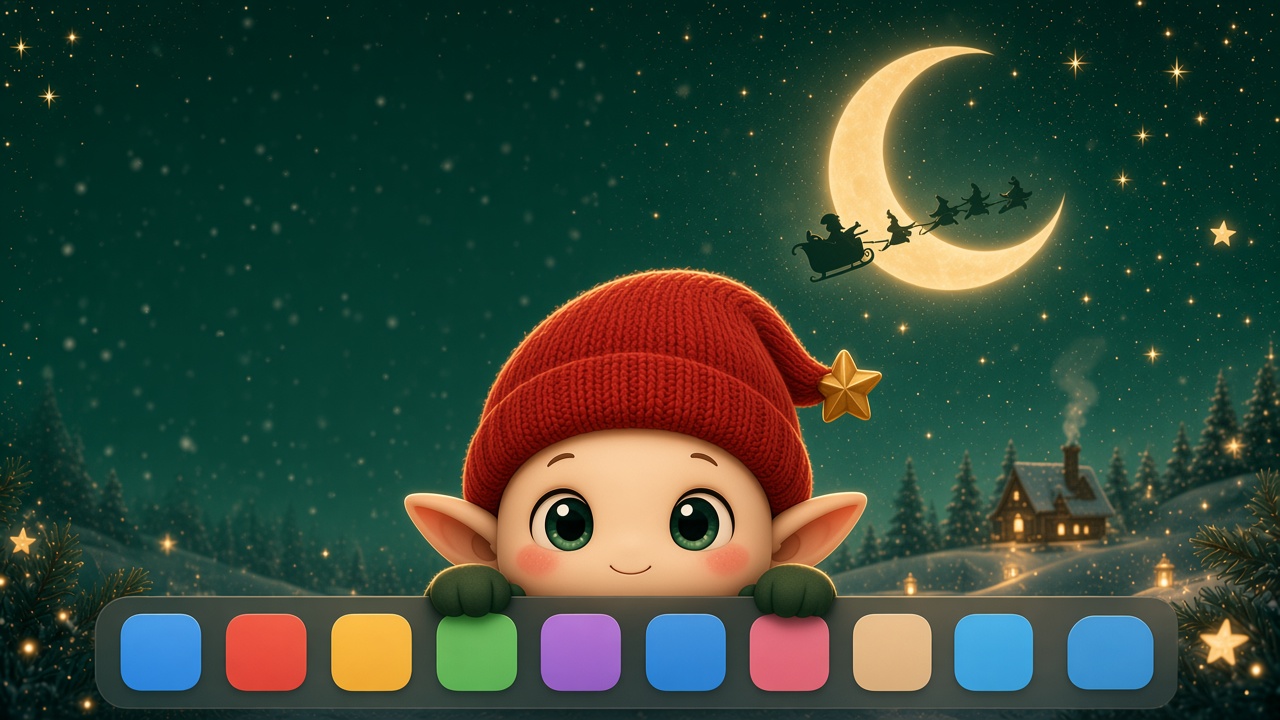
Quick answer: To play elf hide and seek on a Mac, install a hide-and-seek app such as Elfie, which hides a cartoon elf in a new spot on your screen every day from December 1 to 24. Check five places: the edges of open windows, the tops of title bars, behind the Dock, just under the menu bar and the bottom corners of the screen. If you have more than one display, check them all. You can also play a homemade version by hiding an elf picture in your files and giving clues.
Families have been hiding a little elf around the house in December for years. Every night the elf moves, and every morning someone goes looking for him. The catch is that someone has to remember to move him every night.
On a Mac, the computer can do the hiding for you. This guide covers how elf hide and seek works on a Mac, where to look, and a few free ways to play.
What elf hide and seek on a Mac looks like
The idea is the same as the household version, but instead of bookshelves and cupboards, the elf hides among your windows, your Dock and your menu bar.
We make Elfie, a small menu bar app built around exactly this game. Our elf, Pipkin, wears a red knit hat with a gold star and a green scarf. From December 1 to 24 he picks a new hiding spot each morning. When you spot him, you click him: he jumps out, waves, says "ho ho!", and shows you the day's joke or fun fact along with a holiday wallpaper you have just unlocked. The menu bar keeps score, so you can see something like "Day 9 · Found 7/9".
Two details make it feel fair. The day's spot is chosen from the date, so restarting the app does not move him. And if he is hiding behind a window and you drag that window, he moves with it.
Where the elf hides: the five spots to check
Elfie uses five kinds of hiding places. If you know them, you can search methodically instead of staring at the screen.
1. Behind a window

Half of the elf is tucked behind the left or right edge of a real app window, peeking out. Sweep along the side edges of each window. If you close the window he was behind, he finds somewhere else.
2. On a title bar
He sits on top of a window's title bar, the strip at the top with the close, minimise and zoom buttons. Scan the top edge of every window.
3. Behind the Dock
He peeks up from behind the Dock, between app icons. This works with the Dock at the bottom, left or right of the screen, and with auto-hide turned on. If your Dock hides itself, move the pointer to that edge so it slides out.
4. Under the menu bar

He hangs from the bottom of the menu bar. On a MacBook with a notch, he hangs right beside the notch, never under it, so check both sides of it.
5. In a bottom corner
He leans in diagonally from one of the bottom corners of the screen.
Tips for finding him faster
- Check every display. With more than one screen connected, the elf takes turns across all of them.
- Tidy up a little. Minimising a few windows reduces the number of edges he can hide behind. Moving a window drags him along with it, which can give him away.
- Use the Hint. If you are stuck, the Hint button in the menu makes him glow and hop for a moment.
- Want more? Turn on Hide Again, and a few minutes after you find him he hides somewhere new.
Playing at work, with kids, or as a team
Elf hide and seek on a Mac suits places where a physical elf would not. A few ideas:
- Kids on the family Mac. Let a child do the daily search, then read the joke together. The joke and the "ho ho" can be read aloud, or you can switch Sound off in the menu.
- Remote teams. Post your daily score in the team chat and see who has the longest streak by December 24. If you want more festive ideas for the office, our harmless Christmas pranks for coworkers are all workplace-safe.
- Screen shares and meetings. Press Control-Option-E to hide the elf, snow and lights instantly, and press it again to bring them back. There is also Pause for 1 Hour in the menu.
Free ways to play elf hide and seek on a Mac
You do not need an app to play a simple version. These use only what is already on a Mac:
- The hidden picture. Save an elf picture to a nested folder, such as Documents › Recipes › Desserts, and give the seeker clues. Seekers who know Spotlight (Command-Space) can search for it, so give the file a sneaky name if you want it to be harder.
- The elf in the wallpaper. Pick a busy Christmas wallpaper with a small elf somewhere in the scene and challenge someone to find him. Our free Christmas wallpapers for Mac include scenes you can use.
- Sticky note clues. Leave a trail of clues in the Stickies app, each pointing to the next, with the elf picture at the end.
These are fun for a day or two; an app keeps it going for all 24 days without anyone needing to remember.
Is a hide-and-seek elf app safe on a Mac?
Elfie reads the positions and sizes of windows to choose hiding spots, but it never records the screen or reads what is inside windows, and it does not ask for Screen Recording or Accessibility permission. It has no accounts, analytics or ads, and it goes online only to check your license key. The animations run on macOS's Core Animation, and idle CPU use is under 2%.
If you are comparing options, our roundups of desktop pets for Mac and Christmas apps for Mac cover other playful apps too.
Try Elfie this December
Elfie turns December on your Mac into a digital advent calendar: a new hiding spot every day from December 1 to 24, with a joke or fun fact and a painted wallpaper each time you find Pipkin. It also adds gentle snowfall and twinkling lights under the menu bar, and both can be turned off.
It runs on macOS 12 Monterey or later, on Apple Silicon and Intel Macs. It costs $7 for one Mac or $12 for up to five, paid once, with no subscription. Until November 30, 2026, the early-bird code EARLYBIRD brings one Mac down to $5. The download is free and opens with a short tour, and the elf starts hiding once you activate a license. Elfie for Windows is coming in December 2026, and there is a free early preview for Windows with the tray icon and menu. Get Elfie for your Mac.
FAQ
Is there an elf hide and seek game for Mac? Yes. Elfie is a macOS menu bar app that hides a cartoon elf in a new spot on your screen each day from December 1 to 24.
Where does the elf hide on my screen? Behind the edge of a window, on a title bar, behind the Dock, under the menu bar or in a bottom corner. With several displays, he uses all of them.
Does the elf get in the way during video calls? Press Control-Option-E to hide him and the decorations instantly, or choose Pause for 1 Hour from the menu.
Can the whole family play? Yes. A 5-Mac license covers up to five Macs, so everyone can hunt on their own computer and compare scores.
Is there a free trial? No. The download is free and includes a short tour of what Elfie does, and the game starts once you activate a license.
Tags: Elf Hide and Seek · Mac Apps · Christmas Games · Advent Calendar